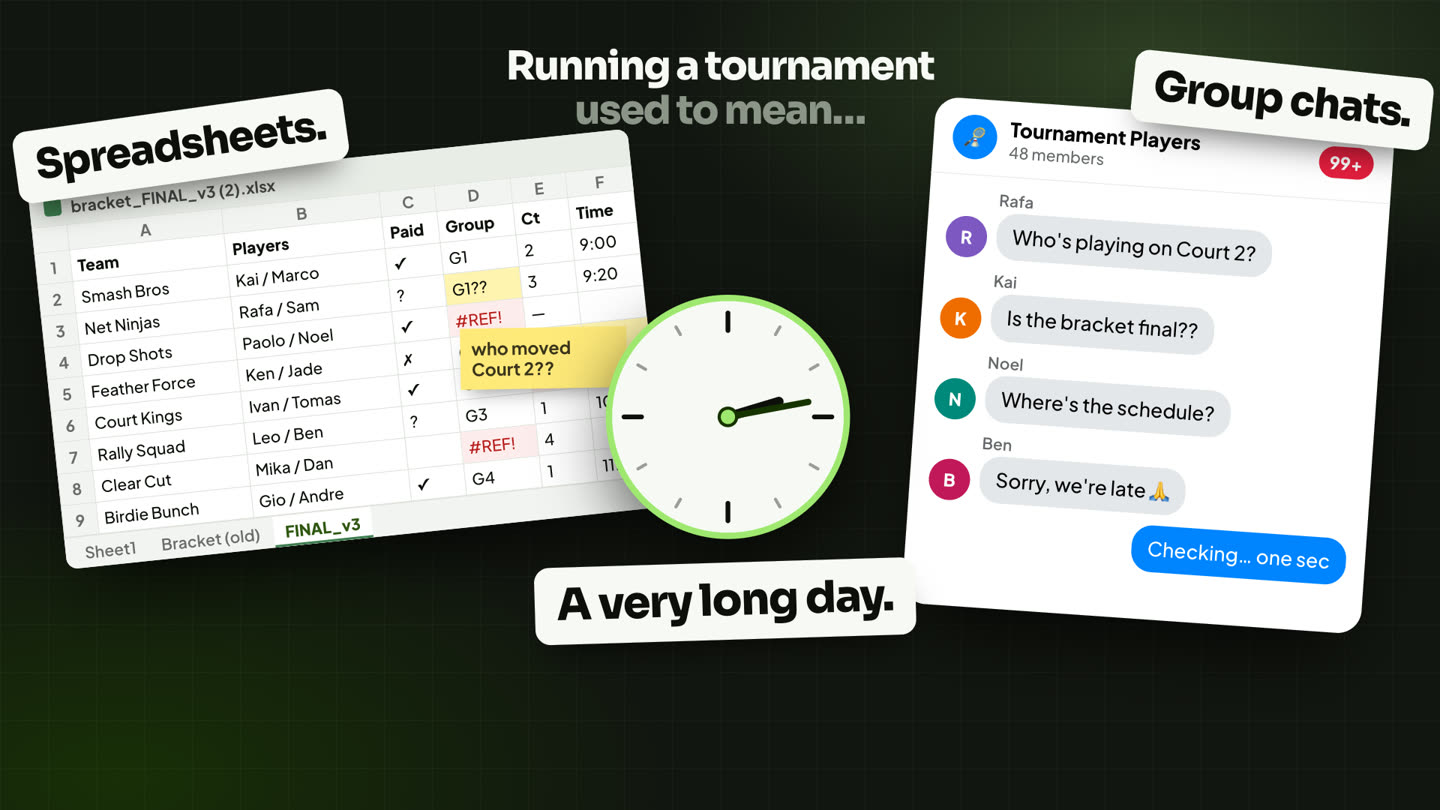
Running a tournament used to mean spreadsheets, group chats, and a very long day. Now it all runs in one place.
A tournament has a lot of moving parts: the sign-ups, the payments, the groups, the schedule, the courts, the scores, the bracket. On Choyens they live together, so each step feeds the next and nobody has to copy anything between a spreadsheet and a group chat. Here’s the whole flow, step by step, the way an organizer runs it. Prefer to watch? It’s all in the video.
Follow the category status
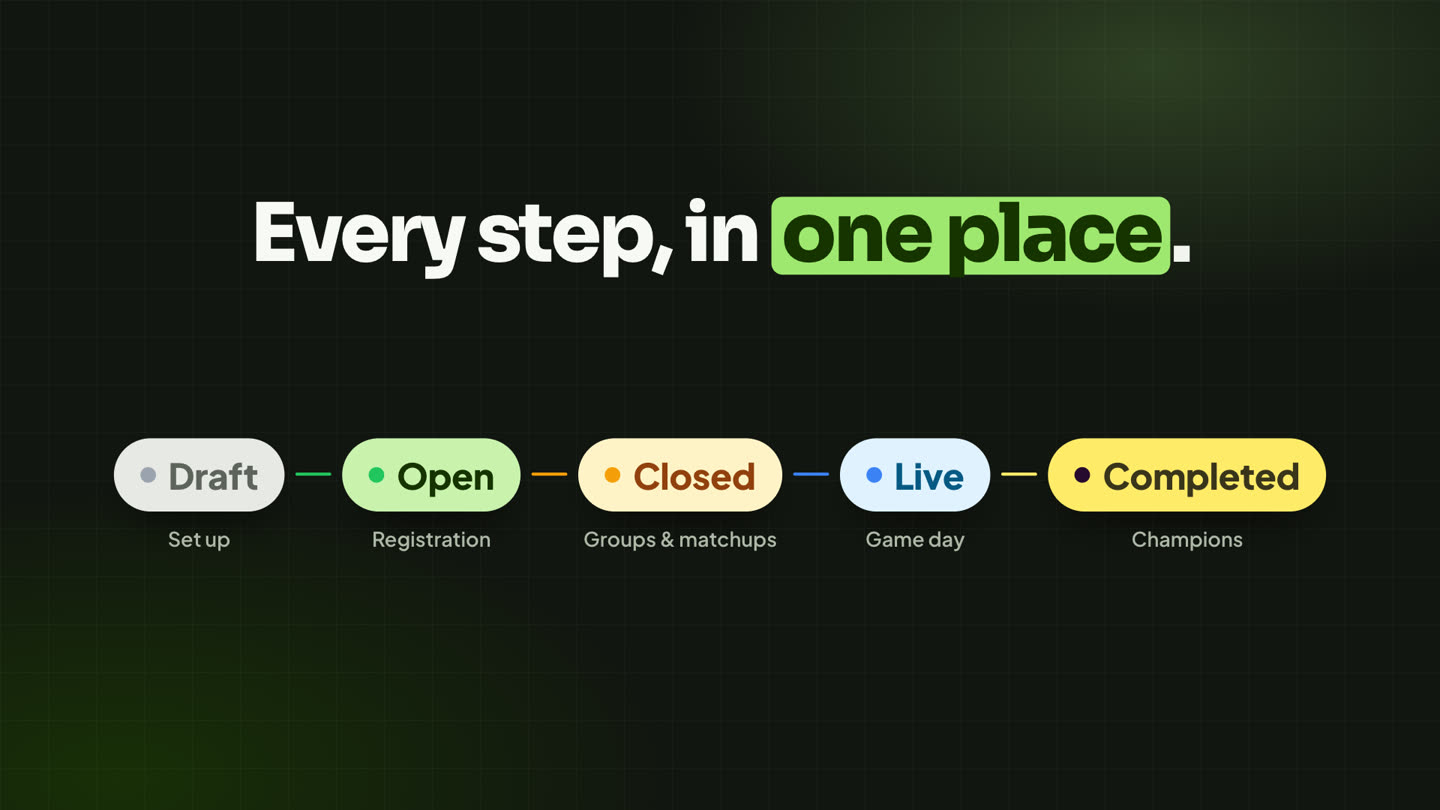
Every category in your tournament (Men’s Doubles, Mixed Doubles, Women’s Doubles and so on) carries a status, so you always know where it stands:
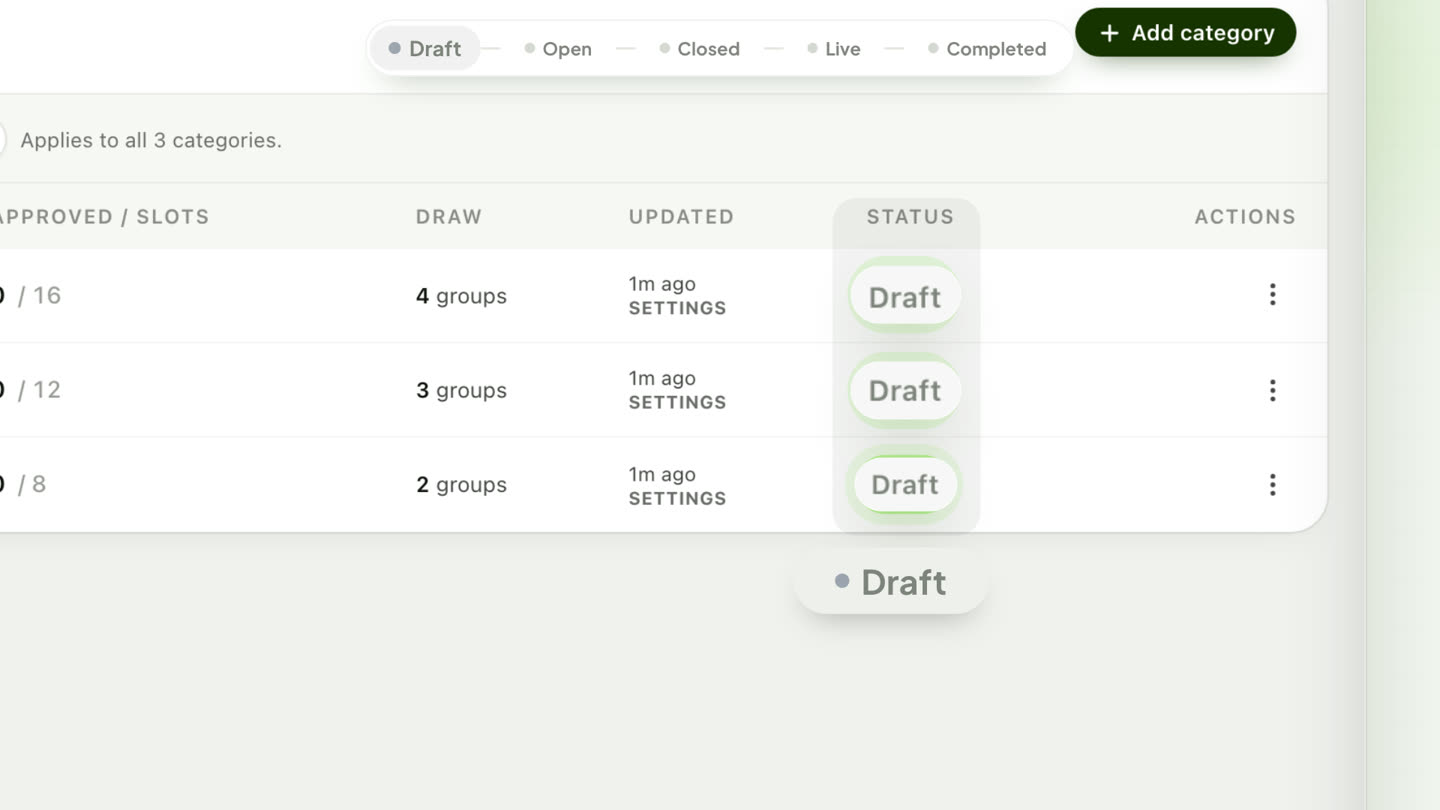
- Draft: set up, not taking players yet. Every new category starts here.
- Open: registration is open and teams can sign up.
- Closed: registration is closed, and the groups and matchups are built.
- Live: the first match has started.
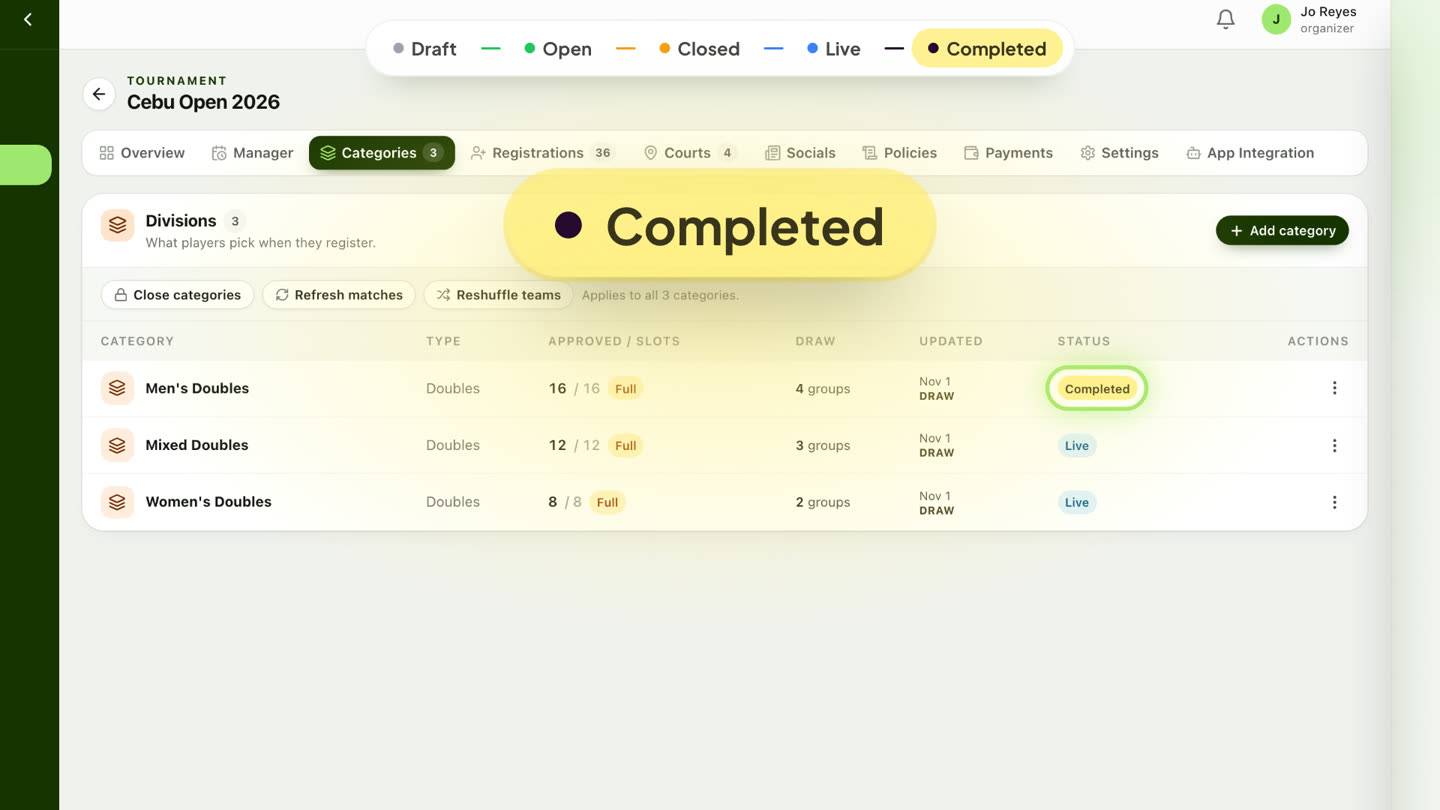
- Completed: the final is decided and the category has its champion.
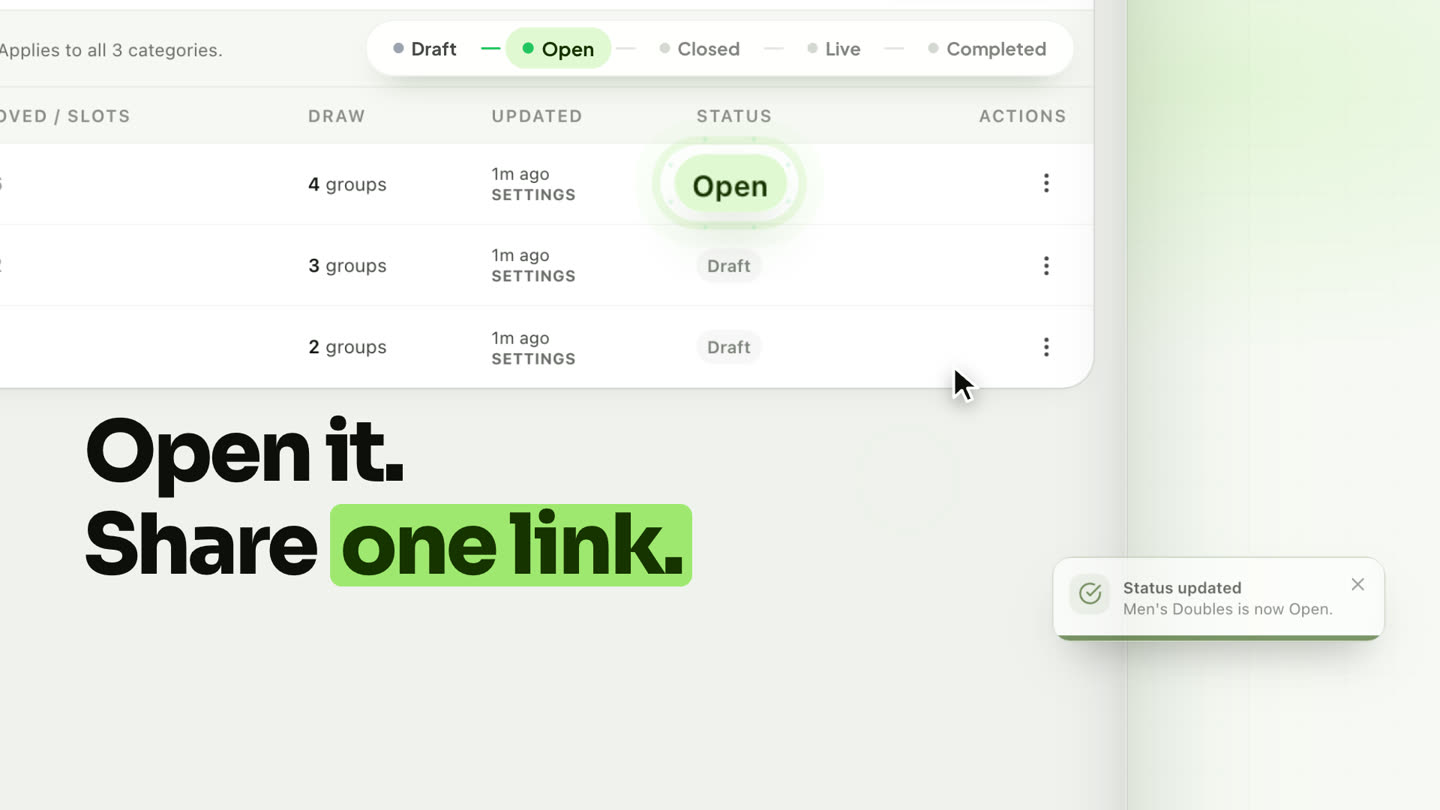
You move a category to Open and to Closed yourself. Live and Completed happen on their own, the moment the games say so.
1 Create the tournament in about five minutes
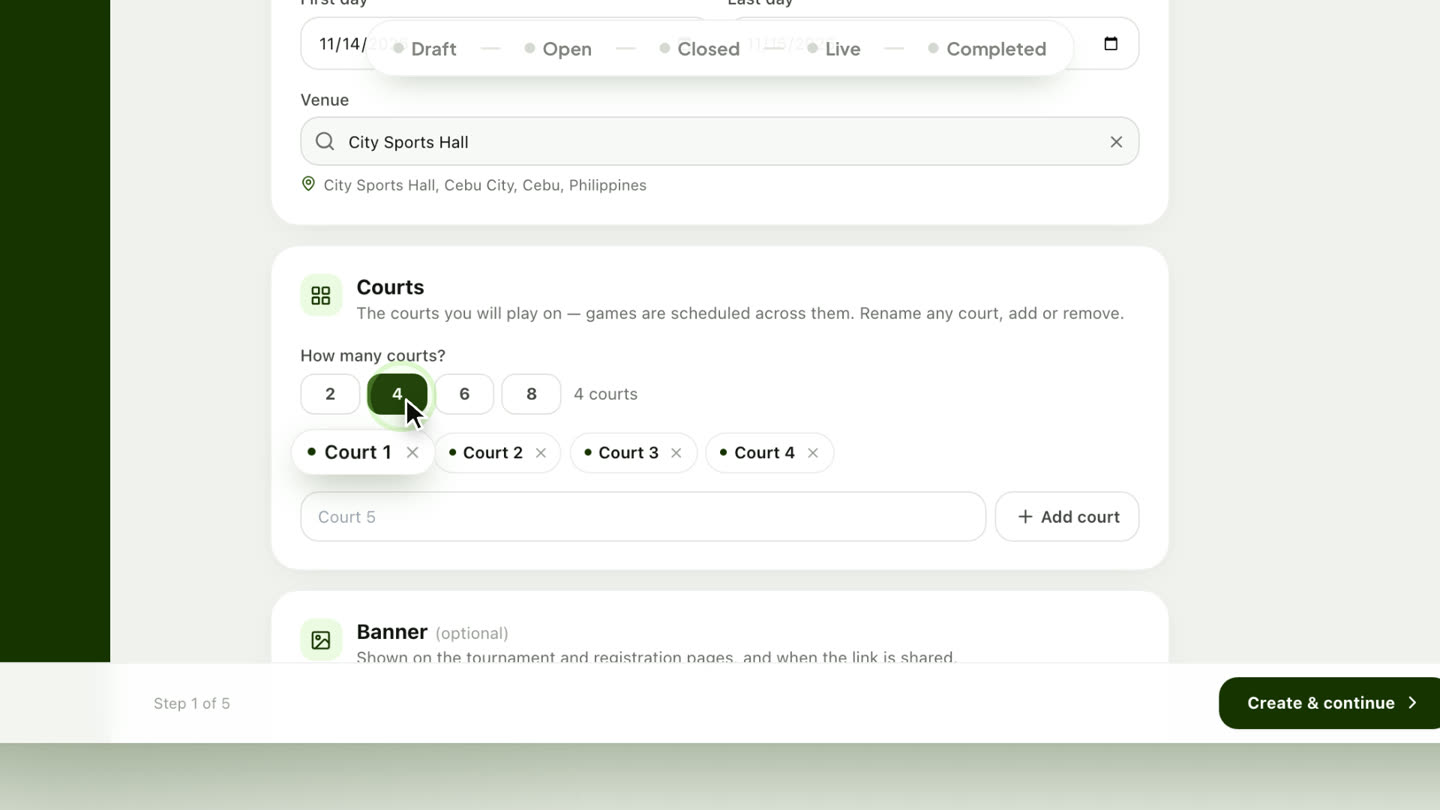
Tap Create tournament and a guided setup walks you through it: Set up a tournament, five short steps, and each one saves as you go. Start with the essentials: the tournament name (your link fills itself in, like cebu-open-2026), the sport, the first and last day, the venue, and how many courts. Pick 4 and you get Court 1 to Court 4, ready to rename.
Then add your categories. For each one, set the type (Singles, Doubles, Team of 3 or Team of 4), about how many teams, how many groups, and the format: Round Robin → Knockout by default. Each new category starts as a Draft.
2 Open registration and share one link
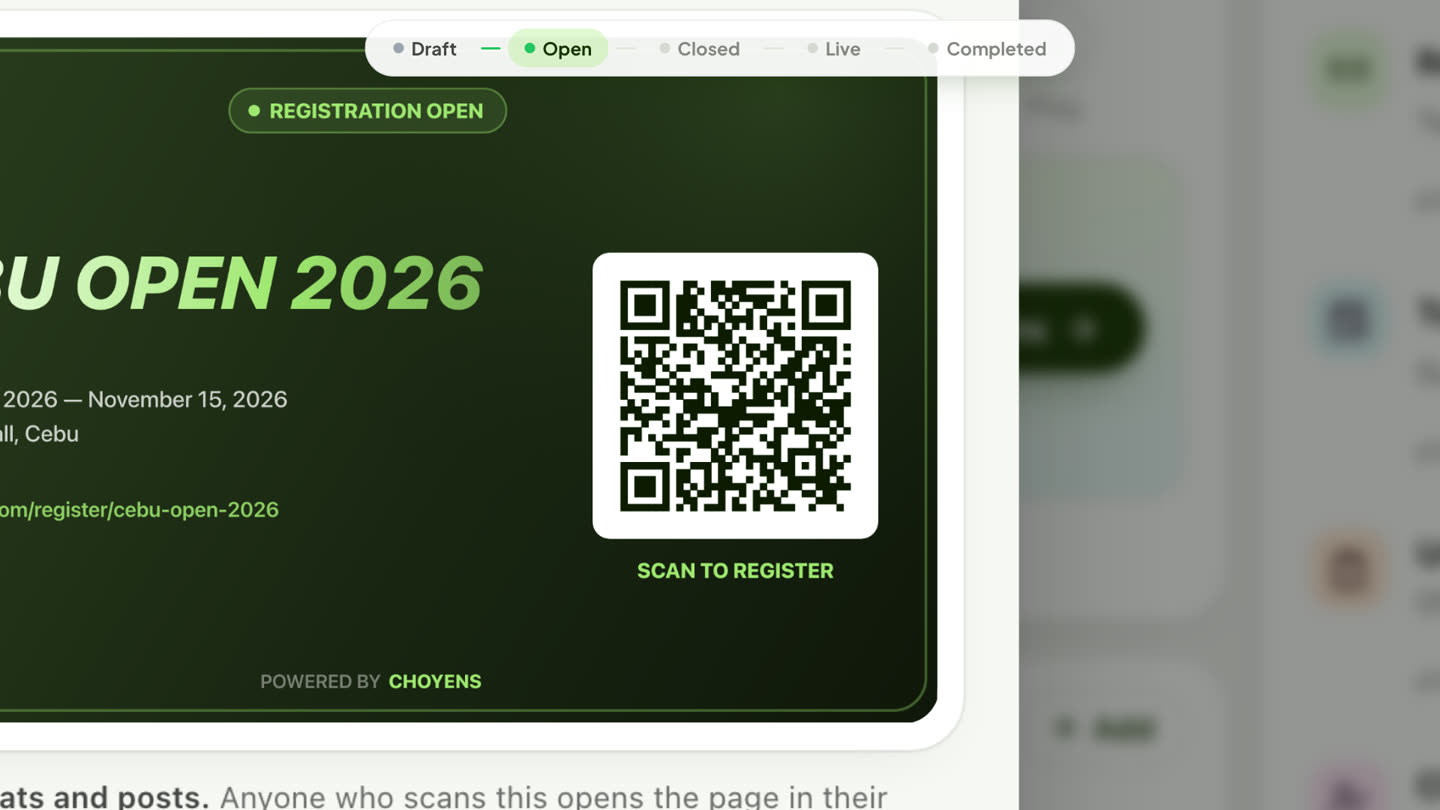
Ready? In the Categories tab, open the row’s menu and set the status to Open. Then tap Share tournament: copy the registration link, or download the card with its QR code (Registration open · Scan to register) and post it in your group chats and on your page. Anyone who scans it opens the registration page in their phone’s browser, with no app needed.
3 Teams register themselves, and you approve with a tap
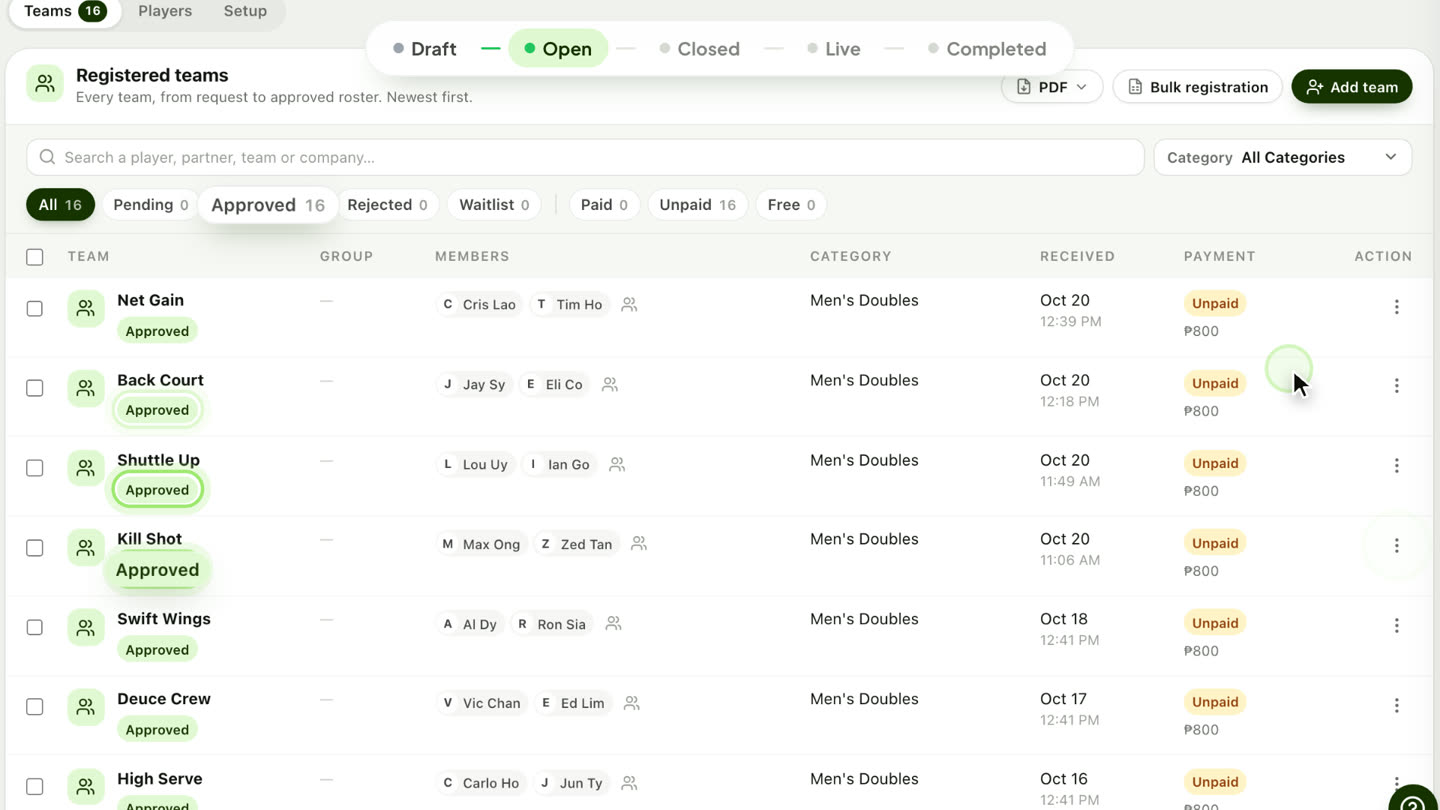
Teams pick their category, enter their players, attach a screenshot of their payment, and submit. You confirm payments yourself: uploading a receipt doesn’t mark a team paid on its own. Every registration lands in your Registrations tab with filters for Pending, Approved, Rejected and Waitlist, and approving one is a tap from the row’s menu.
4 Close registration: groups and matchups are built for you
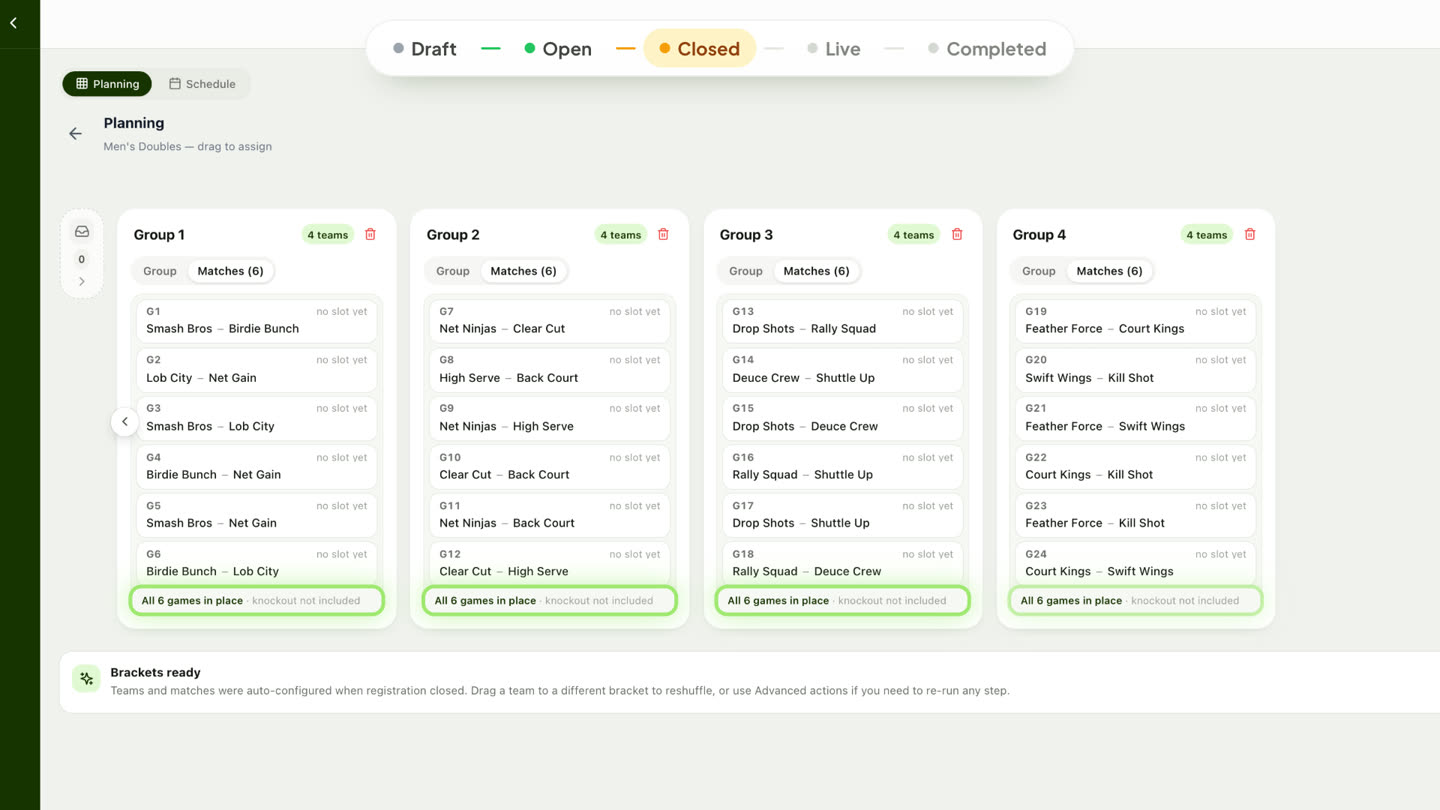
Slots full? Set the category to Closed. Choyens deals the teams into Group 1, Group 2 and so on, and creates every group match. Each group shows its matchups, and you can still drag a team to a different group before play starts.
5 Generate the schedule, then make it yours
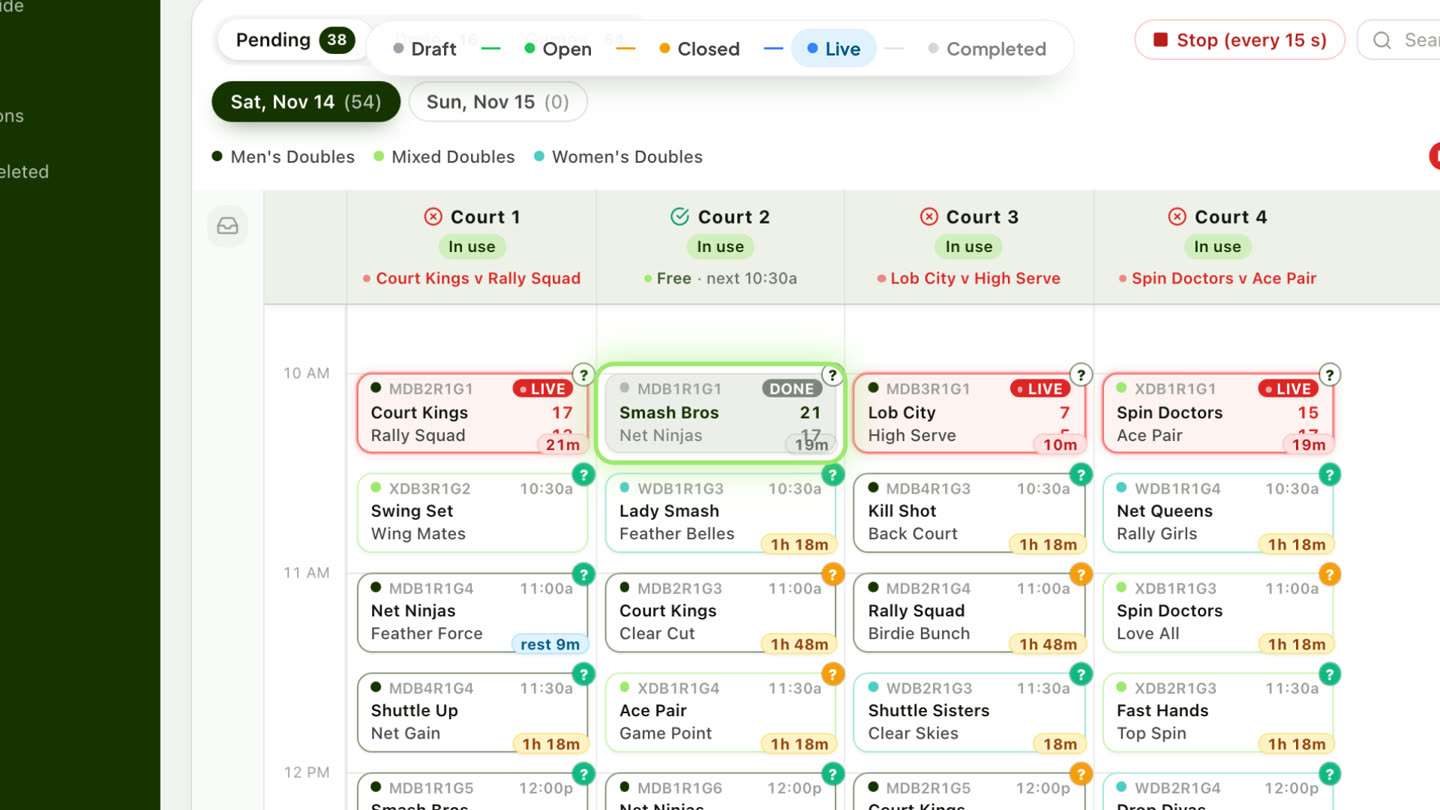
In the Manager tab, tap Generate Schedule. Every pending game, across all categories, gets a court and a time on one shared timeline, with team and player rest respected. The grid shows courts across and time down.
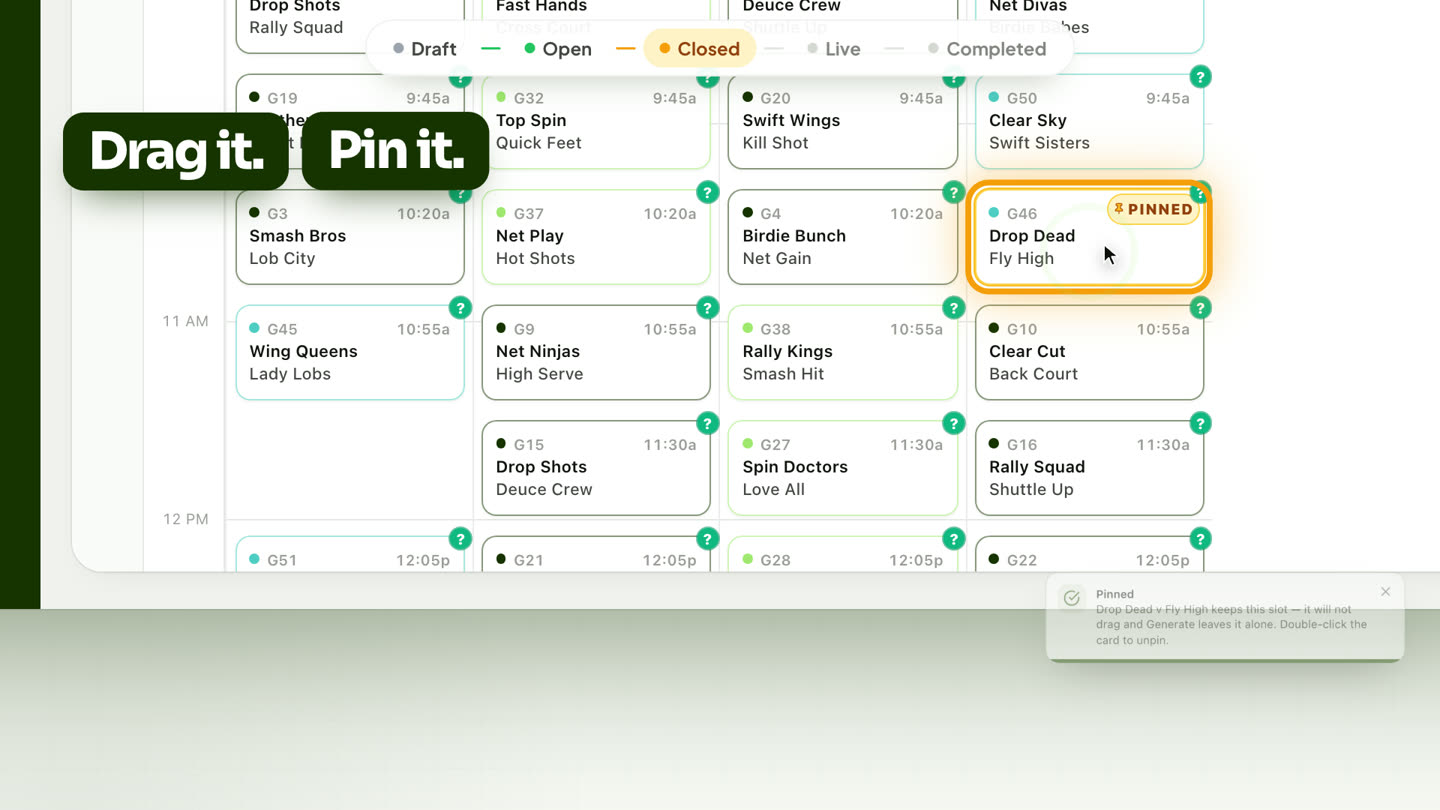
Need a change? Drag a game to another court or time; Choyens warns you if the slot is taken or a player would be in two places at once. Double-click a game to pin it: a pinned game won’t drag, and generating again leaves it alone.
6 Game day: check-in, and the category goes Live
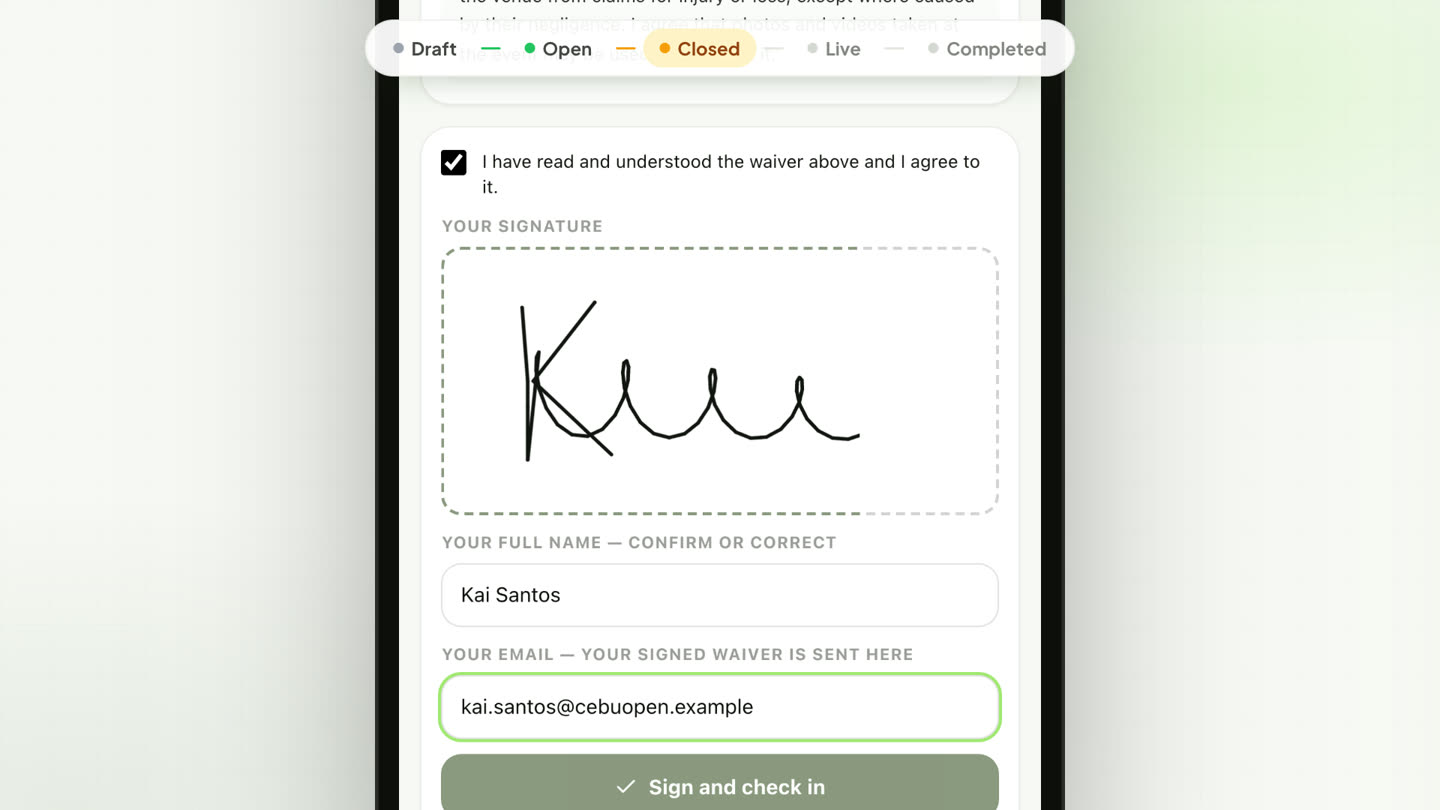
At the desk, players find their name on Player check-in, read the waiver, sign with a finger and tap Sign and check in. Then start the first match from Manage Games, and the category turns Live by itself, with no menu to touch.
The Announcer and Auto Manage
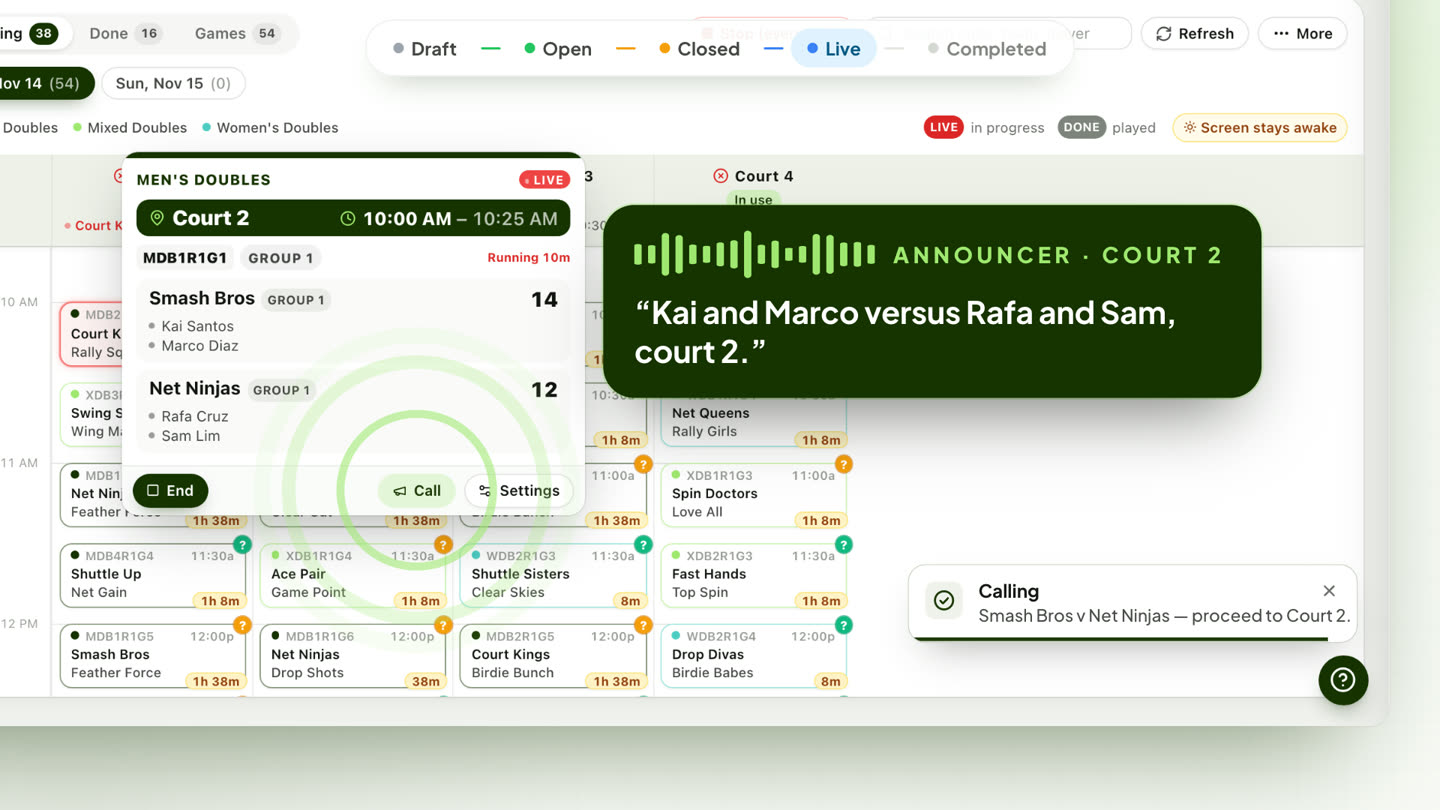
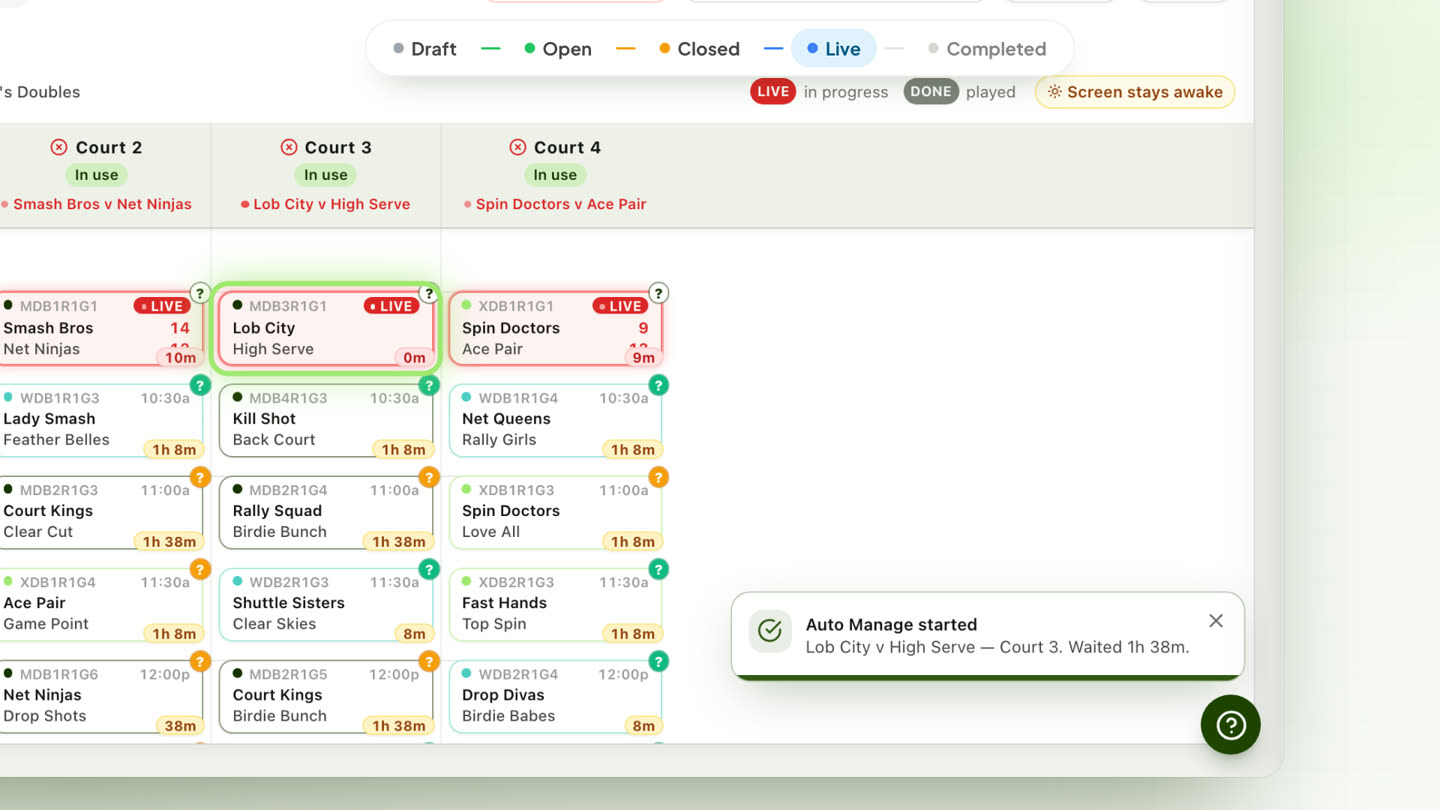
Switch them on in App Integration. Tap Call on a game and the Announcer calls the players to their court out loud. With Auto Manage on, while Manage Games is open, Choyens checks the courts every 15 seconds (or 30 seconds, 1 or 2 minutes). When a court is free, it takes that court’s game that has waited longest and whose players are all free, calls it if the Announcer is on, and starts it.
7 Umpires score on their phones, and sign the slip
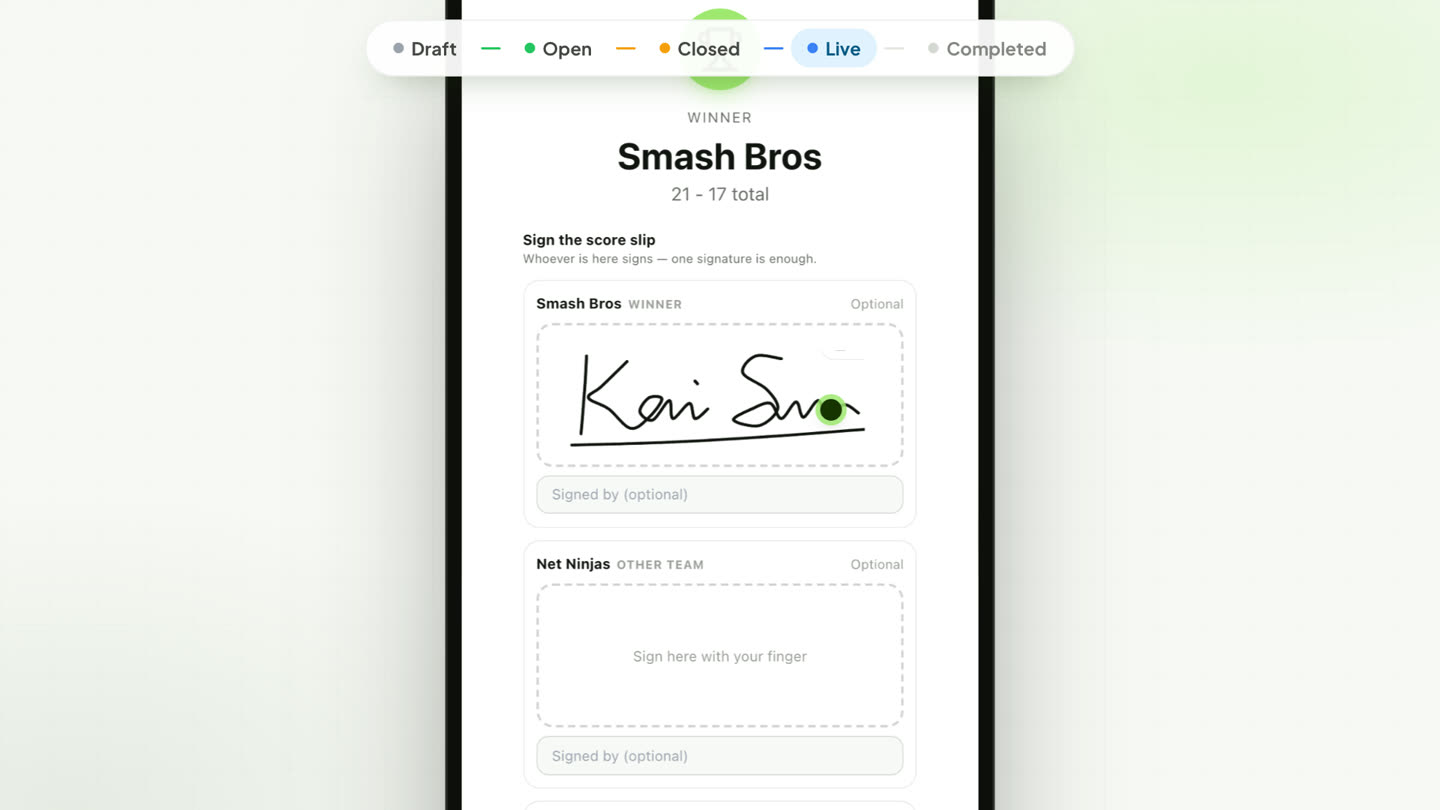
Umpires open the tournament’s umpire page, enter the umpire PIN from the desk, and pick their court. Then they choose how to score: Live scoring, point by point so everyone can follow, or Submit final score when the game is over. At the end they sign the score slip right on the screen. Whoever is there signs; one signature is enough.
The score lands on your screen instantly: the game’s card in Manage Games turns DONE with the final score.
8 Standings, the bracket, and the champions
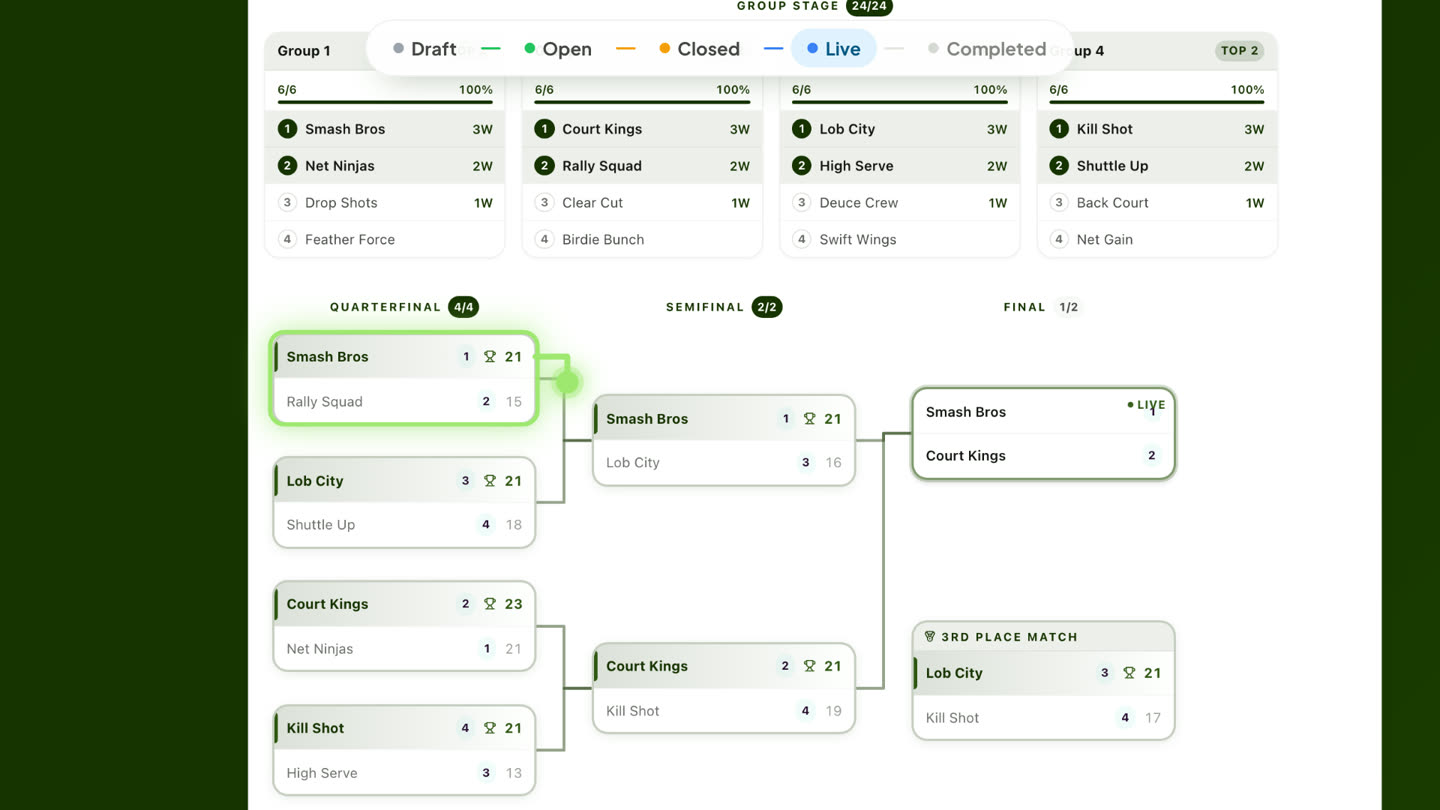
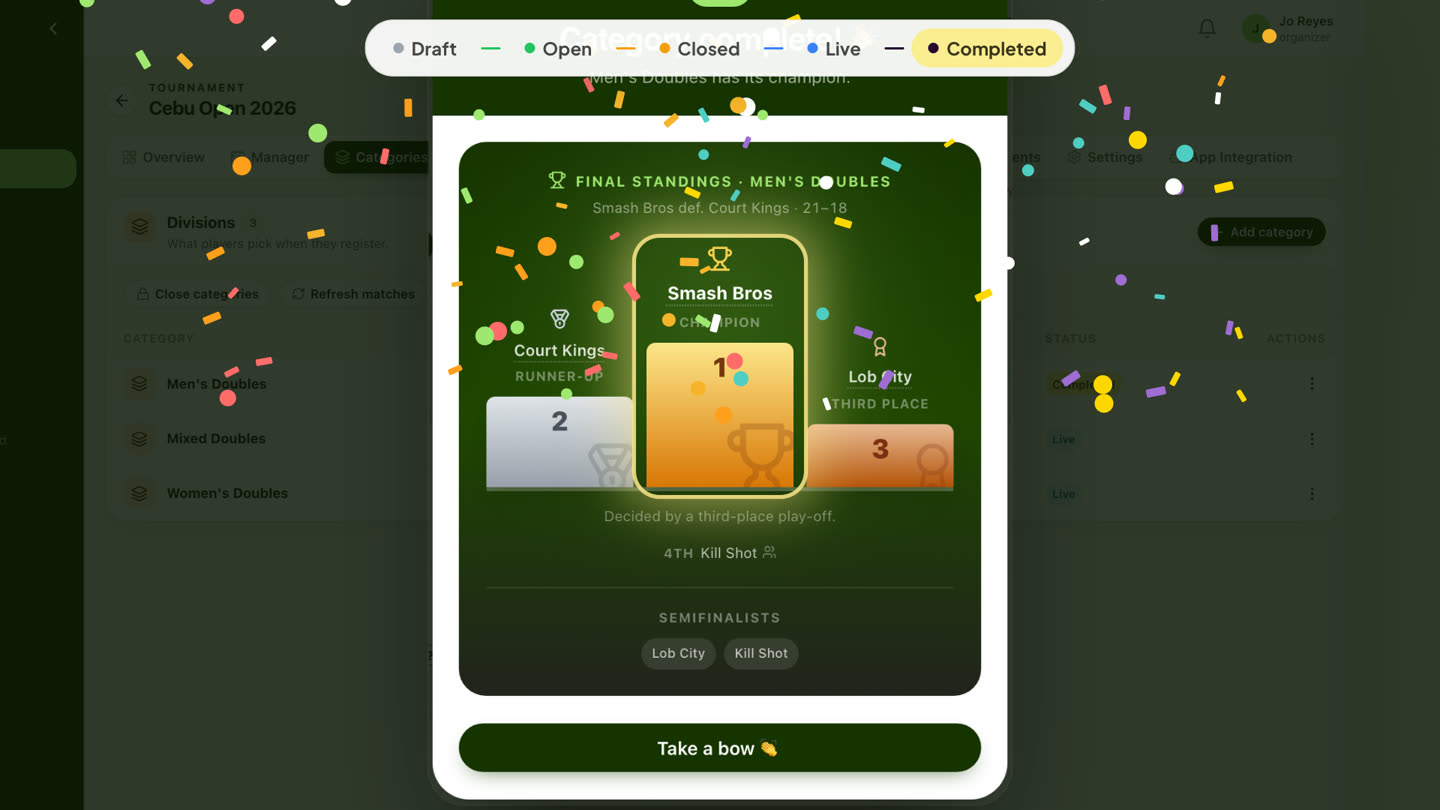
Standings update as games end, the top teams advance, and winners move up the bracket on the public tournament page. When the final is decided, the category turns Completed on its own, and Manage Games celebrates: Category complete!, with the podium for the champion, the runner-up and third place.
Every step, in one place.
Quick answers
Do players need an app to register?
No. The registration link and QR code open in the phone’s browser.
Can I change the schedule after it’s generated?
Yes. Drag a game to move it, and double-click to pin it so generating again leaves it alone.
Do umpires need paper score sheets?
No. They score on their phones and sign the score slip on screen; one signature is enough, and the result reaches your screen right away.
Which sports does it support?
Badminton, pickleball, tennis, table tennis, volleyball and basketball.
Run your next tournament on Choyens
Create your tournament on the web, share one link, and let Choyens handle the groups, the schedule, the courts and the scores.